

Are you frustrated because your Ford SYNC system isn’t working right? Whether your touchscreen freezes, Bluetooth won’t connect, or Apple CarPlay keeps dropping out, these problems can turn every drive into a hassle.
You rely on SYNC to keep you connected, entertained, and safe, so when it acts up, it’s more than just annoying—it disrupts your entire driving experience. But don’t worry, you’re not alone, and many common SYNC issues have simple fixes that you can try yourself.
You’ll discover the most frequent Ford SYNC problems and easy, step-by-step solutions to get your system running smoothly again. Keep reading to take control of your car’s tech and enjoy stress-free drives once more.
Credit: www.garyyeomansford.com
Common Ford Sync Issues
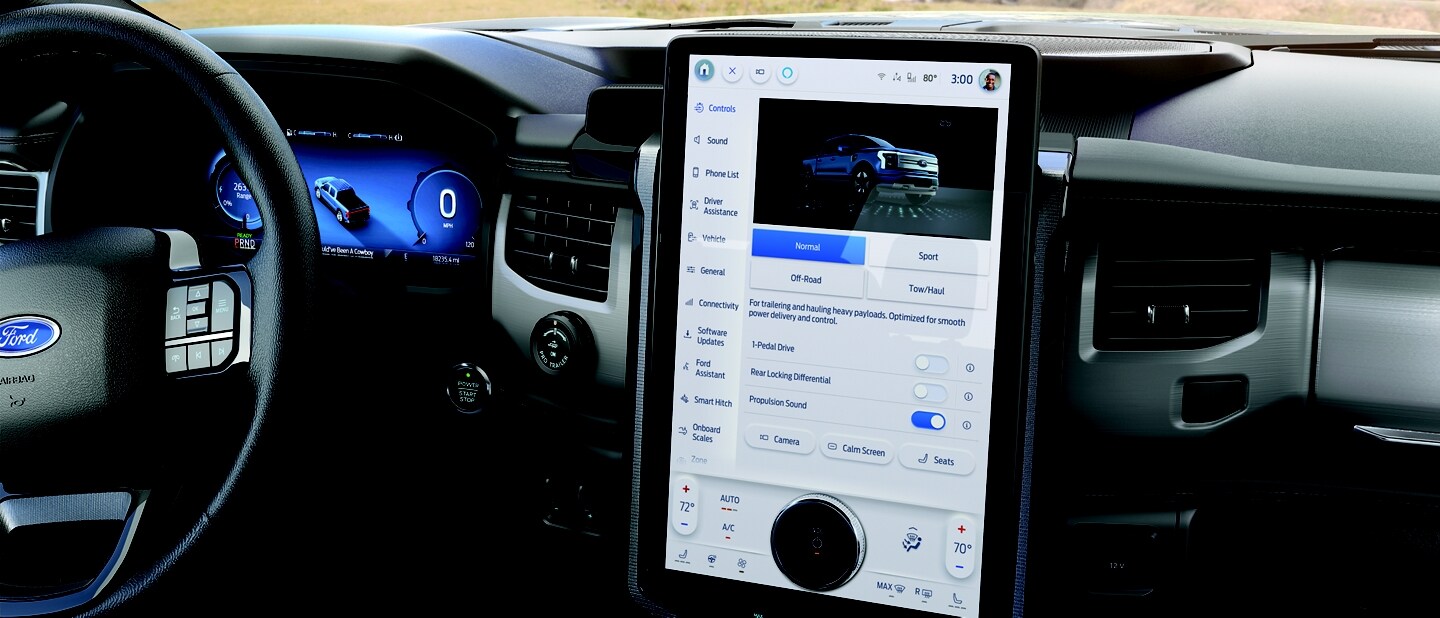
Ford SYNC has become a popular in-car technology system. It offers hands-free communication, entertainment, and navigation. Despite its benefits, many users report common issues. These problems can affect the overall driving experience. Understanding these issues helps in troubleshooting and finding solutions quickly.
Slow And Freezing Screens
The SYNC screen may respond slowly or freeze completely. This issue often occurs after long use or during startup. A frozen screen prevents access to menus and controls. Restarting the system usually helps but may not fix the root cause. Software glitches or hardware faults can cause these delays.
Bluetooth Connectivity Problems
Bluetooth issues are frequent in Ford SYNC systems. Phones may fail to pair or disconnect unexpectedly. Audio calls might drop or sound distorted. These problems reduce convenience and safety while driving. Clearing paired devices and re-pairing often resolves the problem.
Apple Carplay And Android Auto Failures
Some users face troubles using Apple CarPlay or Android Auto. The system may not detect the phone or fail to launch apps. Connection drops during use are common. Cable defects or outdated SYNC software can cause these failures. Ensuring compatibility and updates can help.
Software Update Errors
Updating the SYNC software is necessary but can cause errors. The update might fail to install or freeze midway. This can leave the system unstable or unusable. Proper preparation, such as a stable internet connection, reduces update problems. Sometimes, a manual update via USB is required.
Backup Camera Display Issues
Backup camera problems affect safety and convenience. The display might not show the camera feed or show a distorted image. Loose connections or software bugs often cause this. Cleaning the camera lens and checking system settings can improve performance.
Credit: www.youtube.com
Soft Reset For Quick Fixes
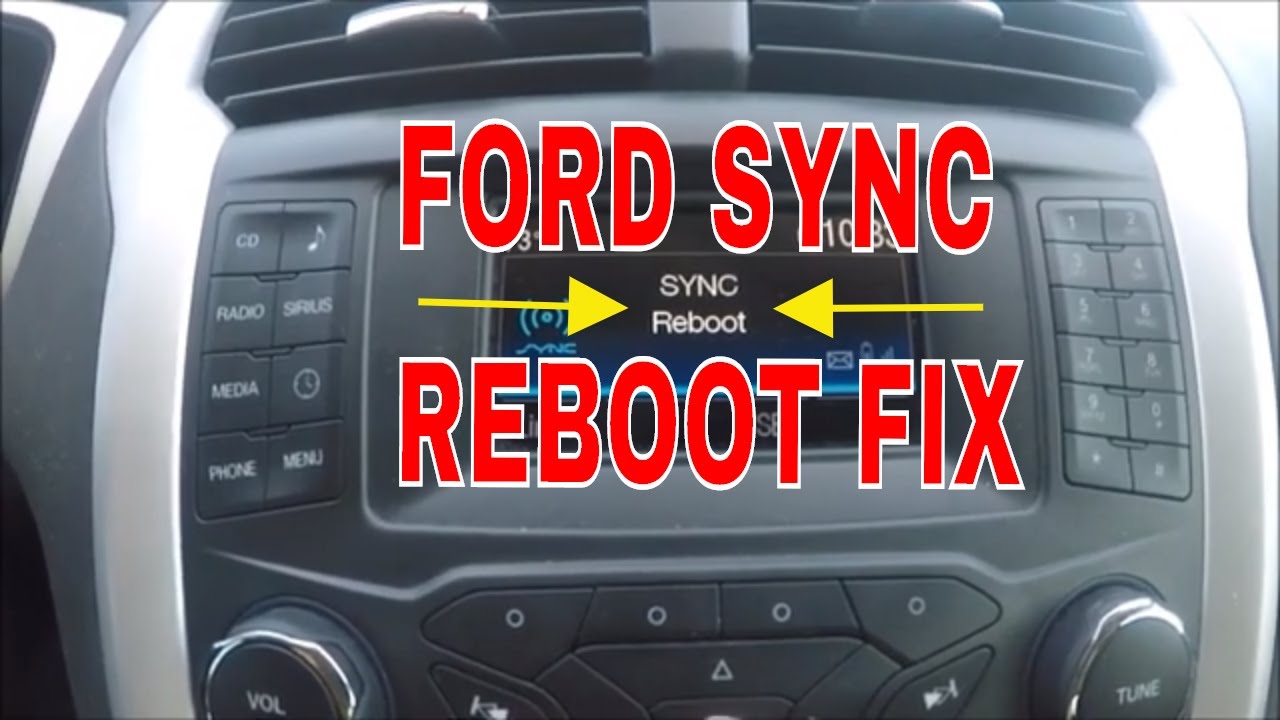
Soft resets offer a simple way to fix many Ford Sync problems. This quick reboot clears minor bugs and glitches. It does not erase your personal settings or paired devices. You can try this method before opting for a full system reset. Soft resets help restore normal function fast and keep your data safe.
When To Use Soft Reset
Use a soft reset if your Ford Sync screen freezes. It also helps when Bluetooth stops connecting. Try it when audio or navigation features act up. This reset is ideal for small issues that need a fast fix. Avoid it for serious problems requiring a full factory reset.
Step-by-step Soft Reset Guide
- Turn your car on or switch to accessory mode.
- Press and hold the power button on the Sync screen for 10 seconds.
- Wait for the screen to go black.
- Release the button when the Ford logo appears.
- Allow the system to reboot completely.
This process takes less than a minute. Your settings and paired devices stay intact. A soft reset often solves freezing and connection glitches quickly.
Master Reset For Deep Glitches
Experiencing persistent problems with your Ford SYNC system can disrupt your driving experience. A master reset can help clear deep glitches that a simple reboot cannot fix. This reset returns the system to its original factory settings, often resolving complex software issues. Below, learn what a master reset does, how to perform it, and what to consider before proceeding.
What Master Reset Does
A master reset erases all personalized data from the SYNC system. It removes paired phones, audio preferences, and navigation favorites. The system then restores to its factory default settings. This process can fix serious software errors and glitches. It clears corrupted files that cause the system to freeze or lag. After the reset, the SYNC system works like new.
How To Perform A Master Reset
Start by turning on your vehicle and accessing the SYNC screen. Tap the “Settings” menu, then choose “General.” Scroll down and select “Master Reset” or “Factory Reset.”
Follow the on-screen instructions carefully to confirm the reset. The system will then erase all settings and restart. This may take a few minutes. Wait until the process finishes before turning off the vehicle or SYNC system.
Data Loss Considerations
Before performing a master reset, remember all data will be deleted. This includes saved contacts, paired phones, and customized preferences. Back up important information if possible. After the reset, you must re-pair your devices and re-enter settings. Prepare to spend a few minutes setting up SYNC again. This step ensures a fresh start for your system.

Credit: mechanics.stackexchange.com
Troubleshooting Connectivity
Connectivity issues with Ford Sync can disrupt your drive and cause frustration. Troubleshooting these problems helps restore smooth communication between your phone and vehicle. Following simple steps can often fix common connection glitches quickly. Focus on key areas like phone settings, cables, and Bluetooth environment to improve Sync’s performance.
Phone Restart And Bluetooth Cycling
Start by restarting your phone. This clears temporary glitches that block connections. Turn off Bluetooth on your phone, wait a few seconds, then turn it back on. This resets the wireless link and often solves pairing issues. Reconnect your phone to Sync after the Bluetooth cycle completes.
Using Approved Usb Cables
Use only approved USB cables for syncing your phone. Cheap or damaged cables cause poor connections or no connection at all. An approved cable ensures stable data transfer and charging. Inspect cables regularly for frays or breaks and replace them if needed. Proper cables keep Sync working smoothly.
Checking Phone Compatibility And Updates
Confirm your phone is compatible with Ford Sync. Older phones or unsupported models may face connection problems. Check Ford’s official list of compatible devices. Keep your phone’s software updated to the latest version. Updates fix bugs and improve Bluetooth functionality. Also, keep the Sync system software current by checking for updates via Ford’s website or dealer.
Reducing Bluetooth Interference
Bluetooth signals can suffer interference from other devices. Turn off other wireless gadgets near your car during pairing. Move away from Wi-Fi routers or other strong signals that disrupt Bluetooth. Avoid connecting multiple devices to Sync at once. Clear out old paired devices from the Sync system to free up space. These steps reduce interference and improve connection stability.
Managing Software Updates
Managing software updates is essential for keeping your Ford Sync system running smoothly. Updates improve performance, fix bugs, and add new features. Ignoring updates can cause problems or reduce system reliability. Staying on top of updates helps avoid many common Sync issues.
Preparing For Updates
Before starting an update, ensure your vehicle is parked and the engine is running. A stable power source prevents interruptions. Connect your vehicle to a strong Wi-Fi network if possible. Back up important data like contacts or navigation favorites. Check the Sync system storage to confirm enough space for the update. Reading update notes helps you understand what changes to expect.
Resolving Update Failures
Update failures can occur due to weak Wi-Fi or power loss. Retry the update after restarting your vehicle and Sync system. Perform a soft reset if the system becomes unresponsive. If the problem persists, try updating using a USB drive with the latest software from Ford’s website. Avoid interrupting the process to prevent data corruption. Contact Ford support if updates still fail after multiple attempts.
Additional Tips And Checks
Resolving Ford Sync problems often requires more than basic resets. Checking hardware and software components helps identify hidden issues. These additional tips and checks improve Sync’s performance and reliability. Follow simple steps to maintain your system’s smooth operation.
Inspecting And Resetting Fuses
Fuses protect your Sync system from electrical surges. A blown fuse can cause the system to stop working. Locate the fuse box in your vehicle, usually under the dashboard or hood. Use your car manual to find the Sync fuse. Check if the fuse is blown by looking for a broken wire inside. Replace it with a fuse of the same amperage. Resetting or replacing fuses can restore power to the Sync system quickly.
Cleaning Usb Ports And Connectors
Dirty or damaged USB ports block proper connection. Dust and debris build up over time, causing sync errors. Use a soft brush or compressed air to clean USB ports gently. Inspect cables and connectors for bends or breaks. Replace damaged cables with new, compatible ones. Clean ports and connectors ensure strong data transfer and charging, reducing Sync faults.
Consulting Ford Support Resources
Ford offers many resources to solve Sync issues. Visit the official Ford website for troubleshooting guides. Use the Sync owner’s manual to understand error codes and settings. Join Ford community forums to share experiences and tips. Contact Ford customer support for expert help. Using these resources saves time and helps fix Sync problems effectively.
Frequently Asked Questions
What Is The Ford Sync Lawsuit?
The Ford SYNC lawsuit involves a company suing Ford Motor Company for alleged patent infringement related to the SYNC system technology.
How Do I Reset My Ford Sync?
To reset your Ford SYNC, perform a soft reset by turning on the car, then hold the power button until the screen restarts. For a full factory reset, go to Settings > General > Master Reset and confirm to erase all personal data.
What Are Common Problems With Ford Sync 3?
Common Ford SYNC 3 problems include slow or freezing touchscreen, Bluetooth disconnections, Apple CarPlay/Android Auto failures, software update errors, blank screens, and backup camera display issues. Performing a soft or master reset often resolves these issues effectively.
How To Fix Sync Not Working?
Perform a soft reset by turning the car on, then rebooting SYNC via the screen. If issues persist, do a master reset in Settings > General > Master Reset. This clears all data but often resolves persistent SYNC problems.
What Are Common Ford Sync Problems Drivers Face?
Ford Sync often has Bluetooth, touchscreen, or voice command issues that disrupt user experience.
Conclusion
Ford Sync problems can disrupt your driving experience. Simple resets often solve common glitches quickly. Keeping the system updated helps prevent many issues. Regular checks ensure Bluetooth and apps work smoothly. Patience and basic troubleshooting go a long way. Knowing these tips saves time and frustration.
Stay informed to keep your Ford Sync running well.