

Are you frustrated because your Ford SYNC system isn’t working like it should? You’re not alone.
Many Ford owners face annoying issues with SYNC — from Bluetooth connection problems to unresponsive screens. These glitches can interrupt your drive and leave you feeling stuck. But don’t worry, there are simple fixes you can try right now to get your SYNC back on track.
You’ll discover the most common Ford SYNC problems and easy, step-by-step solutions that anyone can follow. Keep reading, and you’ll be back to enjoying hands-free calls, music, and navigation in no time.
Credit: www.youtube.com
Common Ford Sync Issues
Ford SYNC is a popular in-car technology system. It helps drivers connect their phones, play music, and use navigation easily. Despite its usefulness, many users face common issues. These problems can affect the driving experience and cause frustration. Understanding these common Ford SYNC problems can help you handle them better.
Bluetooth Connection Failures
Bluetooth issues are the most reported SYNC problems. The system may fail to connect with your phone. Sometimes, the connection drops unexpectedly during calls or music playback. This can happen due to outdated software or phone compatibility. Restarting both devices often helps. Deleting old paired devices from the SYNC system can also fix this problem.
Software Glitches And Freezes
Software glitches cause the SYNC system to freeze or become unresponsive. This can happen during startup or while using apps. Glitches may result from corrupt data or incomplete updates. Performing a soft reset or updating the SYNC software can clear these errors. In some cases, a master reset is necessary to restore normal function.
Usb And Media Playback Problems
Many users report issues with USB ports and media playback. SYNC might not recognize USB drives or smartphones. Audio files may not play properly or skip frequently. Cable problems or incompatible file formats often cause these issues. Trying a different USB cable or device can solve the problem. Also, check that files are in supported formats like MP3 or WMA.
Navigation And Voice Command Errors
Navigation errors include incorrect directions or failure to update maps. Voice commands may not register or respond correctly. Background noise and unclear speech can worsen recognition. Keeping the SYNC system updated improves voice and navigation accuracy. Speaking clearly and in a quiet environment helps the system understand commands better.
Basic Sync Troubleshooting
Basic Sync troubleshooting helps fix many common Ford Sync problems fast. These simple steps reset connections and clear small glitches. Try each method to improve your Sync system’s performance. Most fixes take just a few minutes. This guide covers easy ways to get your Sync working again.
Restarting Your Phone And Sync
Turn off your phone completely. Wait 10 seconds, then turn it back on. Do the same for your Sync system. Restarting clears temporary bugs and refreshes connections. This quick step often solves connection and audio problems.
Deleting And Re-pairing Devices
On your Sync screen, open Settings and find Phone List. Delete your phone from the list. On your phone, go to Bluetooth settings and forget the Sync connection. Restart both devices, then pair them again. This refreshes the link and fixes pairing issues.
Checking Phone Bluetooth Settings
Make sure Bluetooth is turned on your phone. Check permissions for contacts and notifications. Allow Sync to access these features. Some phones block data sharing by default. Adjust settings to ensure Sync works fully with your device.
Trying Different Usb Cables
Use a different USB cable if you connect your phone by wire. Some cables support data and charging, others only charge. Test cables that came with your phone or Sync system. A good cable improves connection and stops errors.
Sync Software Updates
Ford Sync software updates are essential for keeping your vehicle’s infotainment system running smoothly. These updates improve performance, add new features, and fix known bugs. Regular updates help avoid common Sync problems that many users face.
Sync updates can be done easily at home using a USB drive. This process ensures your system has the latest software from Ford. Knowing how to check, install, and troubleshoot updates saves time and frustration.
Checking For Available Updates
Start by visiting the official Ford Sync website. Enter your vehicle’s VIN to find specific updates. The site will show if a newer software version exists for your Sync system. You can also check update availability from the Sync menu on your vehicle’s screen.
Installing Updates Via Usb
Download the update file from the Ford site onto a USB drive. Make sure the drive is empty and formatted to FAT32 or exFAT. Plug the USB into your vehicle’s USB port. Follow on-screen instructions to begin the installation. Keep the engine running during the process to avoid interruptions.
Resolving Update Failures
Update failures can occur due to interrupted power or corrupted files. If an update stops, restart the vehicle and try again. Use a different USB drive if errors persist. Clearing the Sync cache or performing a master reset can also fix stubborn issues.
Advanced Reset Methods
Advanced reset methods can solve many persistent Ford Sync problems. These techniques go beyond basic restarts. They help clear system glitches and improve performance. Knowing how and when to use these resets can save time and frustration. Each reset type targets different issues within the Sync system.
Performing A Soft Reset
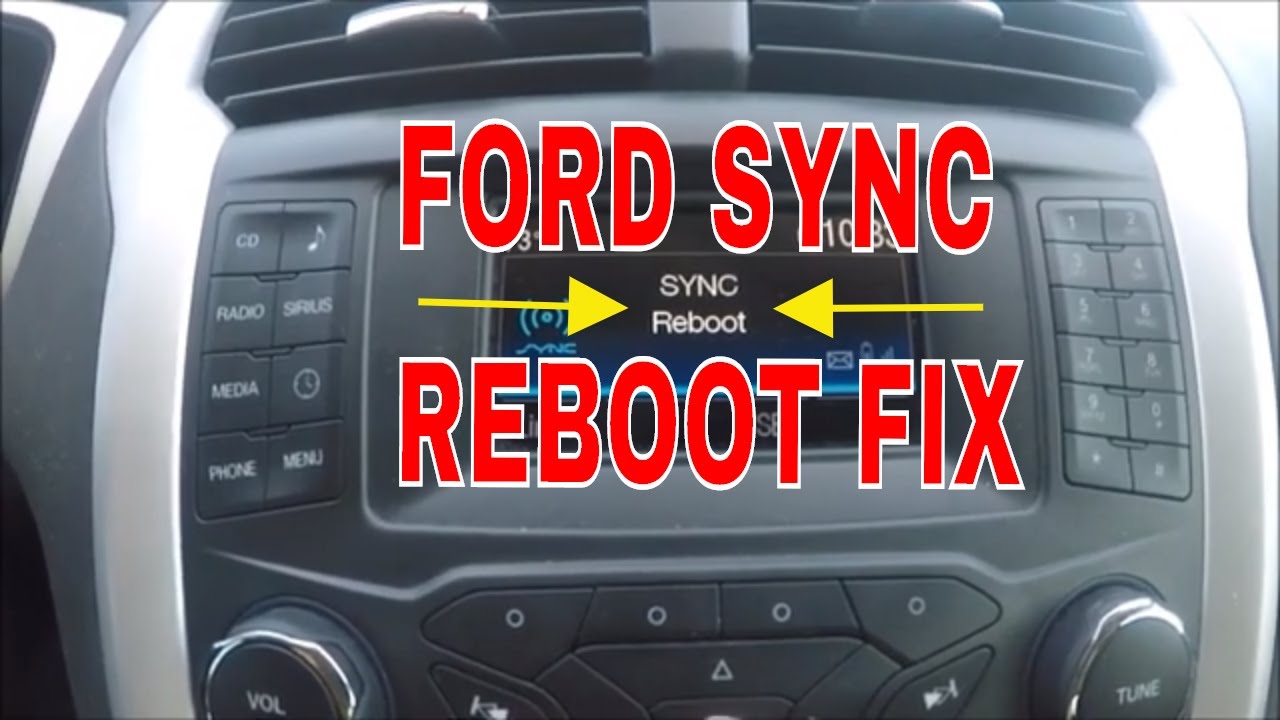
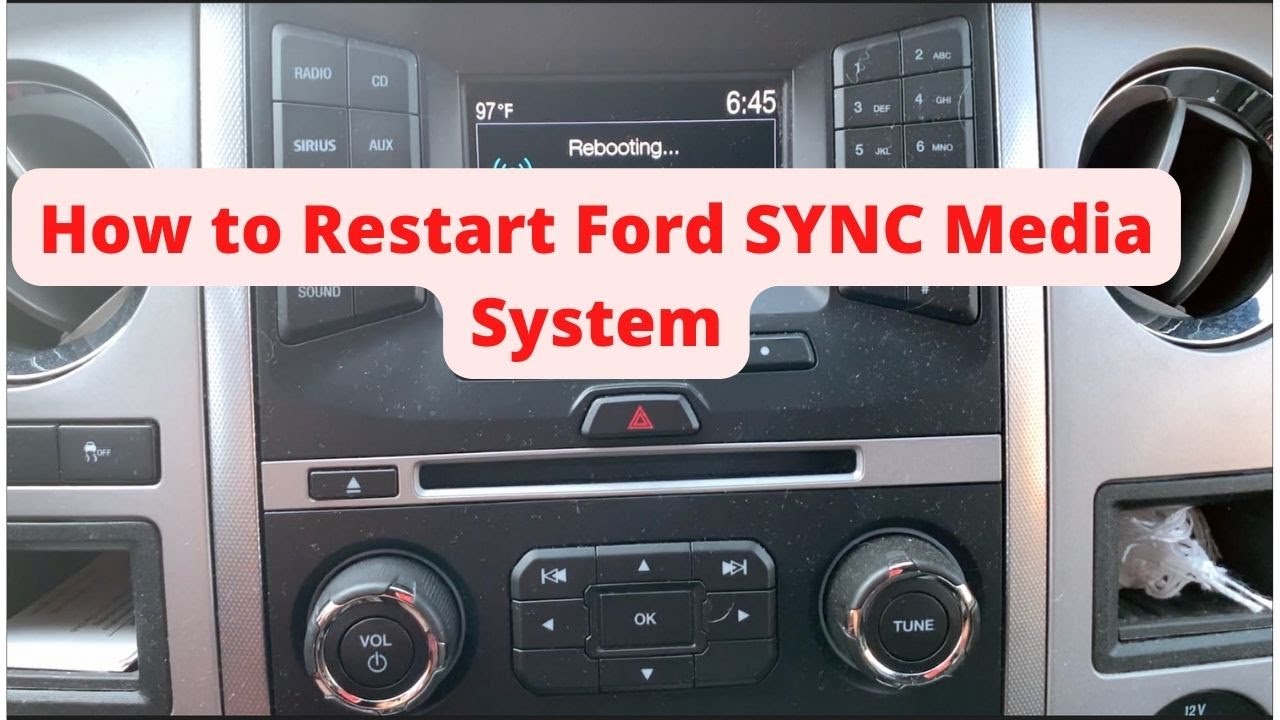
A soft reset is a quick way to refresh the Sync system. It does not erase your settings or data. To do this, press and hold the power button on the Sync screen for about 10 seconds. The screen will turn off and restart automatically. This method clears minor bugs and freezes. Use it when the system is slow or unresponsive.
Executing A Master Reset
A master reset restores the Sync system to its original factory state. This reset deletes all personal data, paired phones, and settings. Access it through the Sync menu: go to “Settings,” then “General,” and select “Master Reset.” Confirm your choice to start the reset. Use this method if soft resets fail or issues persist after updates. Remember to re-pair your devices after the reset.
When To Use Factory Defaults
Factory defaults are useful for severe Sync problems. These include constant crashes, missing features, or unfixable Bluetooth issues. Use factory defaults only if other resets do not work. This option wipes all changes and returns the system to how it was from the factory. It can fix deep software errors but requires setting up Sync again from scratch.
Preventing Sync Problems
Preventing Ford Sync problems helps keep your driving experience smooth. Regular care avoids many common issues. Small steps can keep your system running well. Focus on memory, Bluetooth, and device compatibility to reduce errors.
Managing Internal Memory
Ford Sync stores user data and media files in its memory. Overloading this space causes slow response or crashes. Clear old data often to free memory. Delete unused contacts, music, and apps. Performing a master reset can also help. This resets the system and removes clutter. Keep memory clean for better performance.
Avoiding Bluetooth Interference
Bluetooth signals can conflict with other devices nearby. This causes connection drops or poor audio quality. Keep your phone and Sync system updated. Turn off other Bluetooth devices not in use. Avoid areas with many wireless signals. Reboot your Sync system if connections fail. A stable Bluetooth link means safer, easier calls and music.
Keeping Devices Compatible
Not all phones or devices work well with Ford Sync. Check if your device supports Sync features. Update your phone’s software regularly. Use original cables for wired connections. Pair only one device at a time for best results. Sync updates improve compatibility, so install them quickly. Compatible devices reduce connection problems and improve function.
Credit: www.youtube.com
Dealing With Apple Carplay And Android Auto
Apple CarPlay and Android Auto integration with Ford SYNC offers great convenience. Sometimes, connectivity issues arise that interrupt your experience. Knowing how to handle these problems helps keep your drives smooth and enjoyable.
Troubleshooting Carplay Connectivity
Start by checking your iPhone’s iOS version. Ensure it is up to date. Restart both your phone and SYNC system. Disconnect and reconnect your phone to the USB port. Use the original Apple cable for better connection. On your iPhone, go to Settings > General > CarPlay, and forget your vehicle. Then, set up CarPlay again. Disable restrictions that might block CarPlay in your phone’s settings. If problems continue, try resetting your SYNC system to factory settings.
Android Auto Sync Tips
Make sure your Android phone has the latest version of Android Auto installed. Turn on Bluetooth and Location services on your device. Restart the phone and your vehicle’s SYNC system. Clear the cache and data for the Android Auto app. Reconnect your phone to the car using a USB cable. Grant all permissions requested by the app. If sync issues persist, uninstall and reinstall the Android Auto app. Check your phone’s developer settings and disable USB debugging if enabled.
Cable And Port Recommendations
Using high-quality cables improves connection reliability. Avoid cheap or damaged USB cables. Use cables certified by Apple or your phone’s manufacturer. Connect your phone to the SYNC port closest to the dashboard screen. Inspect USB ports for dirt or damage regularly. Clean ports gently with compressed air if needed. Replace any worn or loose cables promptly to avoid sync interruptions.
Helpful Resources And Support
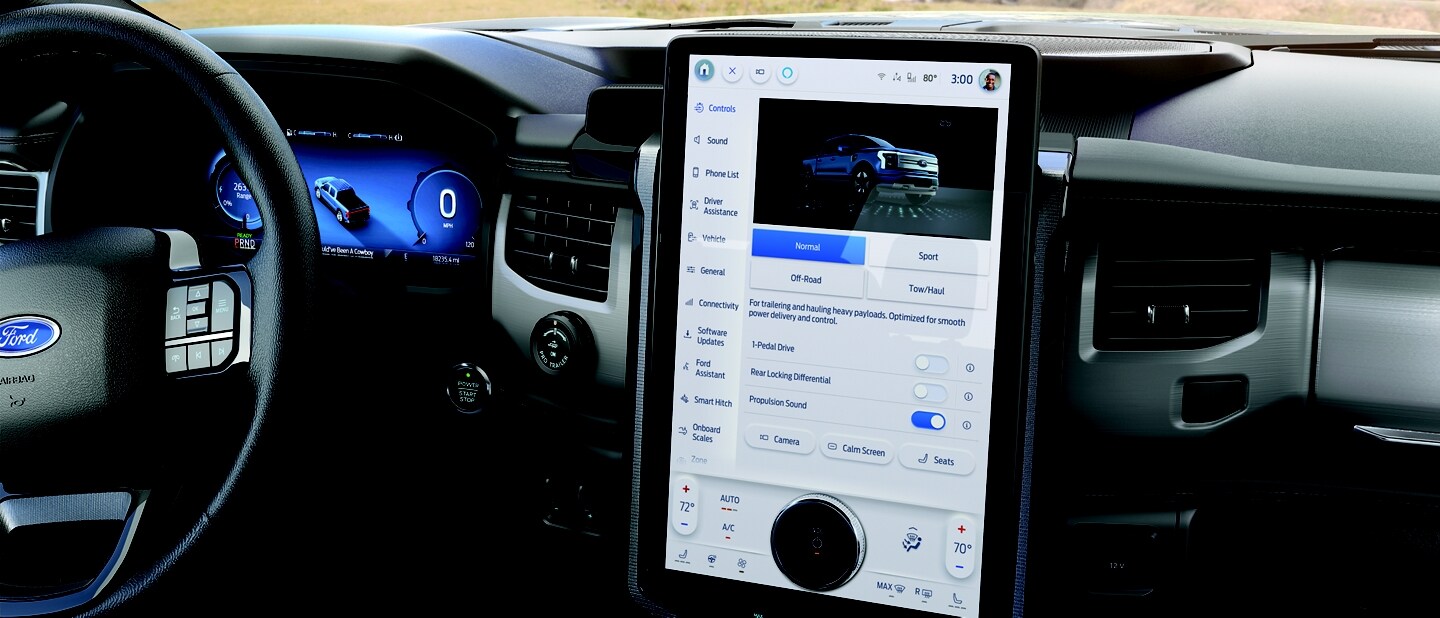
Finding reliable help for Ford Sync problems can save you time and frustration. Several resources offer guidance to fix common Sync issues. These tools assist drivers in troubleshooting and understanding their vehicle’s system better. Whether you prefer reading manuals, calling support, or joining online communities, options are available. Below are key resources and support channels you can use for Ford Sync.
Consulting The Owner’s Manual
Your Ford owner’s manual is the first place to check for Sync issues. It contains detailed instructions on system features and basic troubleshooting. Manuals often explain error messages and how to reset the system safely. Reading this guide can clarify many Sync functions without needing extra help. Keep the manual handy in your car or access a digital version online.
Ford Customer Service Options
Ford provides dedicated customer support for Sync concerns. You can call their help center to speak with trained representatives. They offer advice for software updates, system resets, and hardware problems. Some issues may require a dealership visit, which support staff can arrange. Using official Ford service ensures expert help and genuine parts if needed.
Community Forums And Diy Videos
Online forums are rich sources of shared experiences and fixes. Ford owners discuss Sync problems and post step-by-step solutions. YouTube channels offer clear DIY videos showing how to reboot or update Sync systems. These resources help users perform simple repairs without professional aid. Engaging with communities also connects you to others facing similar issues.
Credit: www.garyyeomansford.com
Frequently Asked Questions
What Are The Common Ford Sync Problems?
Common Ford SYNC problems include Bluetooth connection issues, unresponsive touchscreen, software glitches, and failed updates. Users often face syncing errors with phones and voice command failures. Performing a master reset or software update usually resolves these issues quickly.
What Is The Ford Sync Lawsuit?
The Ford SYNC lawsuit is a national class-action against Ford for defective MyFord Touch and SYNC systems. It seeks recalls, compensation, and stops Ford from selling the flawed technology.
How To Fix Ford Sync System?
Restart your phone and the SYNC system. Delete and re-pair Bluetooth devices. Update SYNC software via settings. Perform a master reset if issues persist. Try a different USB cable and check phone Bluetooth settings. Consult your vehicle’s manual for detailed troubleshooting.
How Do I Reset My Ford Sync?
To reset your Ford SYNC, go to “Settings” > “General” > “Master Reset. ” Confirm to erase all data and restore factory settings. Re-pair your devices afterward.
What Are Common Ford Sync Problems Users Face?
Common issues include Bluetooth connection failures, system freezing, voice command errors, and slow response times.
Conclusion
Ford Sync problems can disrupt your driving experience. Simple steps like rebooting or updating often help. Removing old devices and re-pairing your phone can fix connection issues. A master reset restores the system to factory settings but erases saved data.
Always check your phone’s Bluetooth settings and use good cables. Consult your vehicle’s manual for specific tips. Taking these actions can improve your SYNC system’s performance. Stay patient and try these fixes before seeking professional help. Your Ford Sync can work smoothly again with proper care.